
Filers & recipients
Check Address
Check and standardize a standalone US or Puerto Rico address with Google Maps.
In this guide
Before you start
Before you begin
Have a US or Puerto Rico street address, including any apartment or suite.
View all setup requirements
- Account Admins, Managers and Preparers can run address checks.
- Google address services must be enabled and configured for Address Validation by the platform operator.
Run a standalone check
Open Recipients > Tools > Check Address. No saved record or active filer is needed.
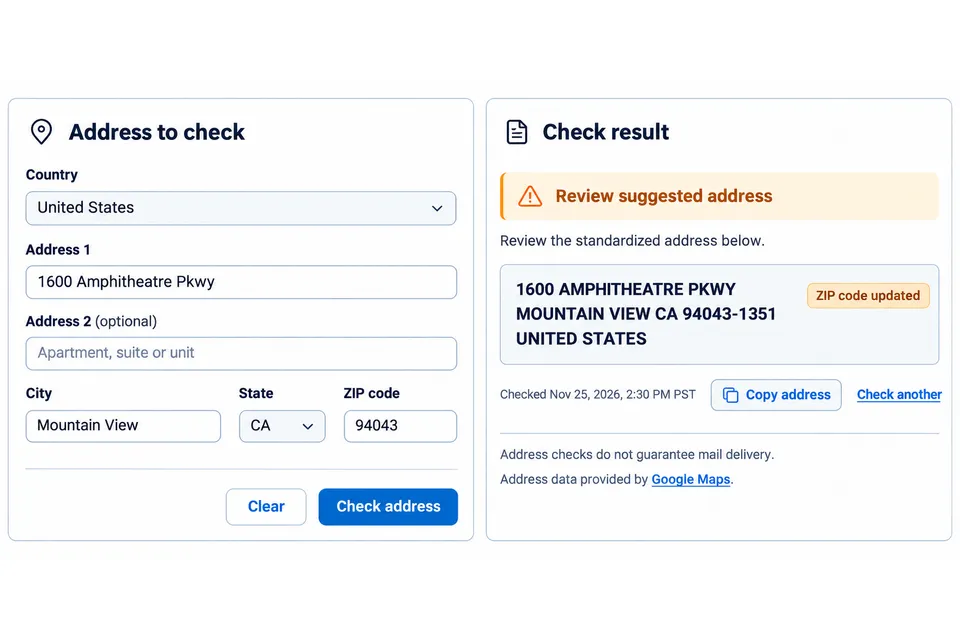
Choose United States or Puerto Rico and enter the street address, optional apartment or suite, city, state and ZIP code. Address suggestions can help fill the fields when available, preserving returned suite or unit details. The input, standardized result and location viewer share one card.
Choose Check address. Review whether the address is verified, corrected, incomplete or could not be fully confirmed.
Use Copy address to copy the standardized result. Edit any field to clear the previous result before checking again. Clear empties the form and result.
Use the map below the result when available. Street View may show nearby imagery; Open in Google Maps works even when no embedded preview is configured.
Check and standardize a standalone US or Puerto Rico address with Google Maps.
Page details and controls
Check Address
Check and standardize a standalone US or Puerto Rico address with Google Maps.
Location
When available, the Location section shows a map of the checked address. Choose Street View for nearby imagery where Google has coverage, or Open in Google Maps to open the location in a new tab. Switching views does not run another address check. The map is for reference and does not guarantee mail delivery or a photograph of the exact property.
Actions and controls
- Check and standardize a standalone US or Puerto Rico address with Google Maps.
- Clear empties the address and result. Changes to an address field clear the previous result.
- View the checked location on a map and explore nearby Street View imagery when available.
If you get stuck
The address needs review.
Confirm corrected or inferred components with the source. Add missing information and check again. A Google result does not guarantee mail delivery.
Address checks are unavailable.
Try again later. No automatic retry occurs; service availability, provider configuration and the shared spending limit can affect checks.
More troubleshooting (1)
The map or Street View is unavailable.
Keep using the standardized address and Copy address. Choose Open in Google Maps, or return to Map if Google has no Street View imagery. A missing preview does not change the address-check result.