
FORM 1099-S GUIDE
File Form 1099-S online.
Prepare closing-related statements with transferor, property, and gross proceeds details connected.
Settlement agents and title companies can keep preparation, review, and reporting organized in one place.
TrustpilotRead our customer reviews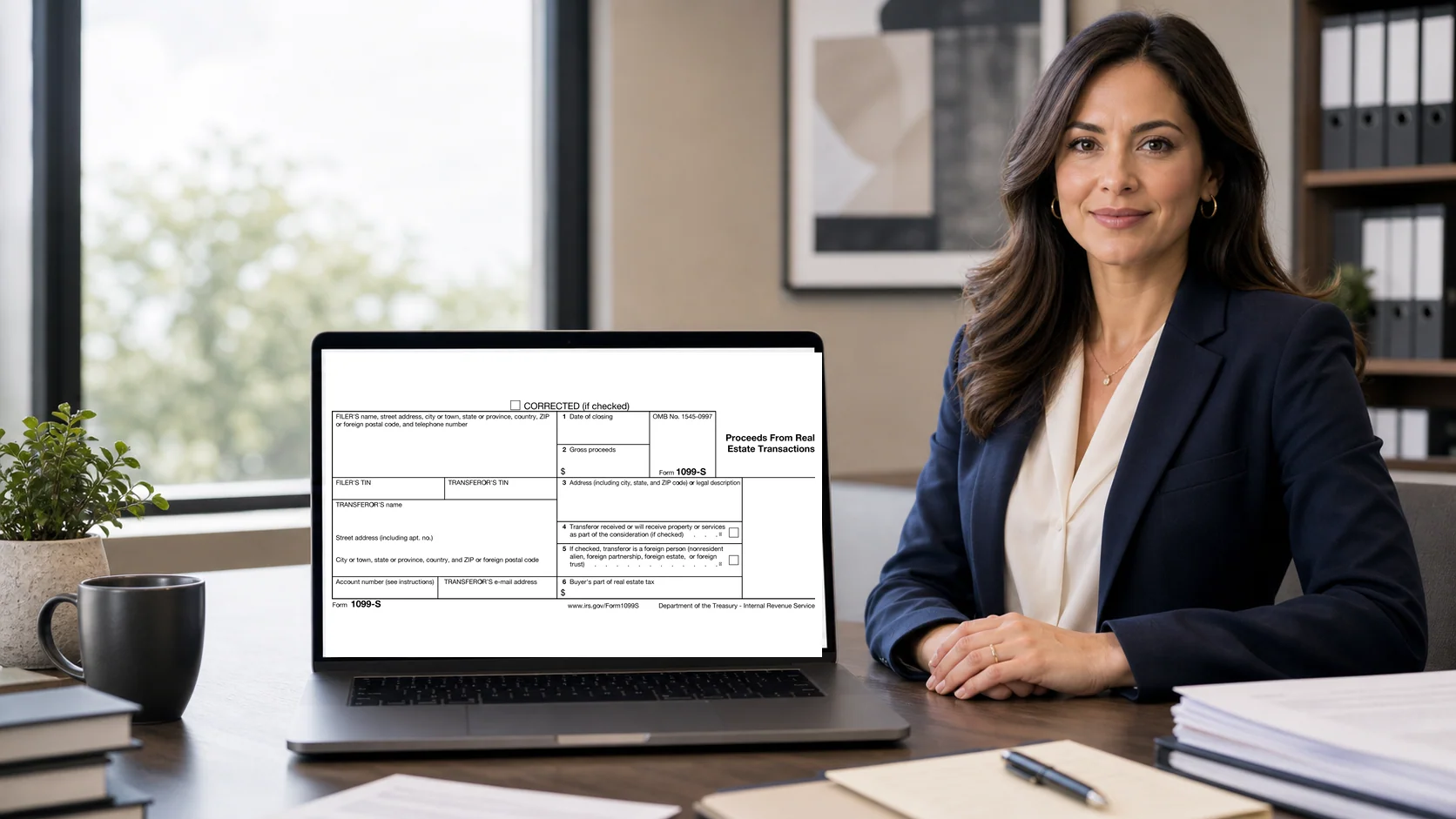
What is Form 1099-S?
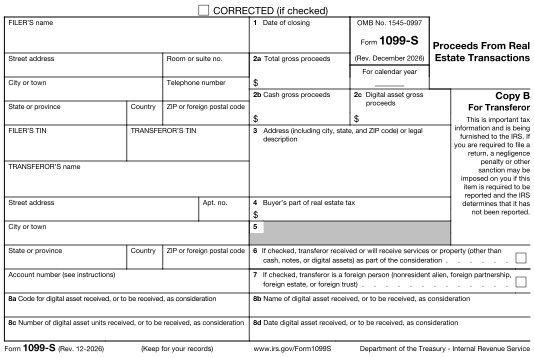
Form 1099-S reports proceeds from certain real estate transactions. The person responsible for closing, or another reporting person under the IRS rules, reports the transferor and transaction details. The amount reported is gross proceeds, not a calculation of the seller's taxable gain.
- 1
Filer and transferor
Names, TINs, addresses, and transaction or account references.
- 2
Property and closing
Property address or legal description and the closing date.
- 3
Transaction amounts
Gross proceeds and applicable property, tax, or other transaction information.
Guides & scenarios
Practical help for your 1099-S questions.
Explore the preparation guide and situations that may affect your reporting.

2026 preparation guide
Form 1099-S for 2026: A Closing Agent’s Filing Guide
Read guide
Reporting scenario
Form 1099-S Home Sale Exemptions and the Seller Certification Check
Read scenario
Reporting scenario
A Property Has Multiple Sellers: Allocate Gross Proceeds Before Filing
Read scenario
More 1099-S guides and scenarios (1)
Working in E-File Magic?
Prepare a template importWho prepares this form
Built for your 1099-S reporting work.
Settlement agents and title companies
Connect each closing to the correct transferor identity, property information, and proceeds.
Attorneys and other reporting persons
Review your reporting responsibility, transaction exceptions, and allocation of proceeds before preparing the return.
Import your 1099-S data.
Start with a form-specific Excel template or map your spreadsheet columns. Review imported records and complete any missing information before filing.
How to e-file Form 1099-S with E-File Magic.
A clear path from prepared records to IRS filing and recipient delivery.
- 1
Add a filer
Set up your business or client and select the tax year.
- 2
Prepare records
Import or enter your recipient and 1099-S information.
- 3
Review forms
Resolve validation issues and preview PDFs before release.
- 4
Release an order
Review filing and delivery services, then submit when ready.
- 5
Track progress
Follow order processing, filing, and selected delivery services.
CF/SF e-File
Combined Federal/State e-File with CF/SF program participation for eligible filings.
Recipient delivery
Review PDFs and choose secure e-delivery or Print & Mail.
PDF review
Check form details and recipient copies before you release an order.
Review the available services and order details before release. Preparing a PDF is separate from submitting a filing order.
Explore filing servicesFrequently asked questions
Form 1099-S filing questions.
Practical answers about real estate proceeds reporting and the next steps in your workflow.
Can I import Form 1099-S data from Excel?
Yes. Use the supported Excel template for your form and reporting year, or map a supported spreadsheet to the available fields. Review the import results and complete any missing 1099-S details before releasing an order. You can also enter records directly.
Who is responsible for filing Form 1099-S?
The IRS instructions establish the reporting person, commonly the person responsible for closing the transaction. The responsibility should be confirmed from the closing arrangement.
Does Form 1099-S show the seller's taxable gain?
No. It reports gross proceeds and transaction information. The seller's basis, expenses, and any exclusion are separate considerations for their tax return.
When is Form 1099-S due?
E-File Magic publishes Print & Mail and e-file service dates for Form 1099-S by tax year on the due dates page. Choose your reporting year there; a missing date does not mean there is no deadline. Use the linked IRS instructions to confirm this form's IRS filing and recipient-statement requirements, including any special timing rules.
Can I deliver recipient copies electronically?
Yes. Eligible recipients with email addresses can receive secure e-delivery, with verification and consent steps in the recipient workflow. Follow delivery and download activity from your account.
Can I add Print & Mail?
Yes. Choose optional Print & Mail when you need physical recipient copies. Review recipient mailing addresses, the selected services, and the order price before release.
Can I review the form before filing?
Yes. Review recipient and form details, resolve validation issues, and preview PDFs before releasing your order. Importing data or generating a PDF does not submit the return to the IRS.
Ready to prepare your 1099-S forms?
Prepare, review, file, and deliver with E-File Magic.